Who needs to set up MFA?
Multi-factor authentication (MFA) adds an additional layer of security to your NI account.
As of November 14, 2026, MFA is required for users who authenticate directly through NI using their email address and password.
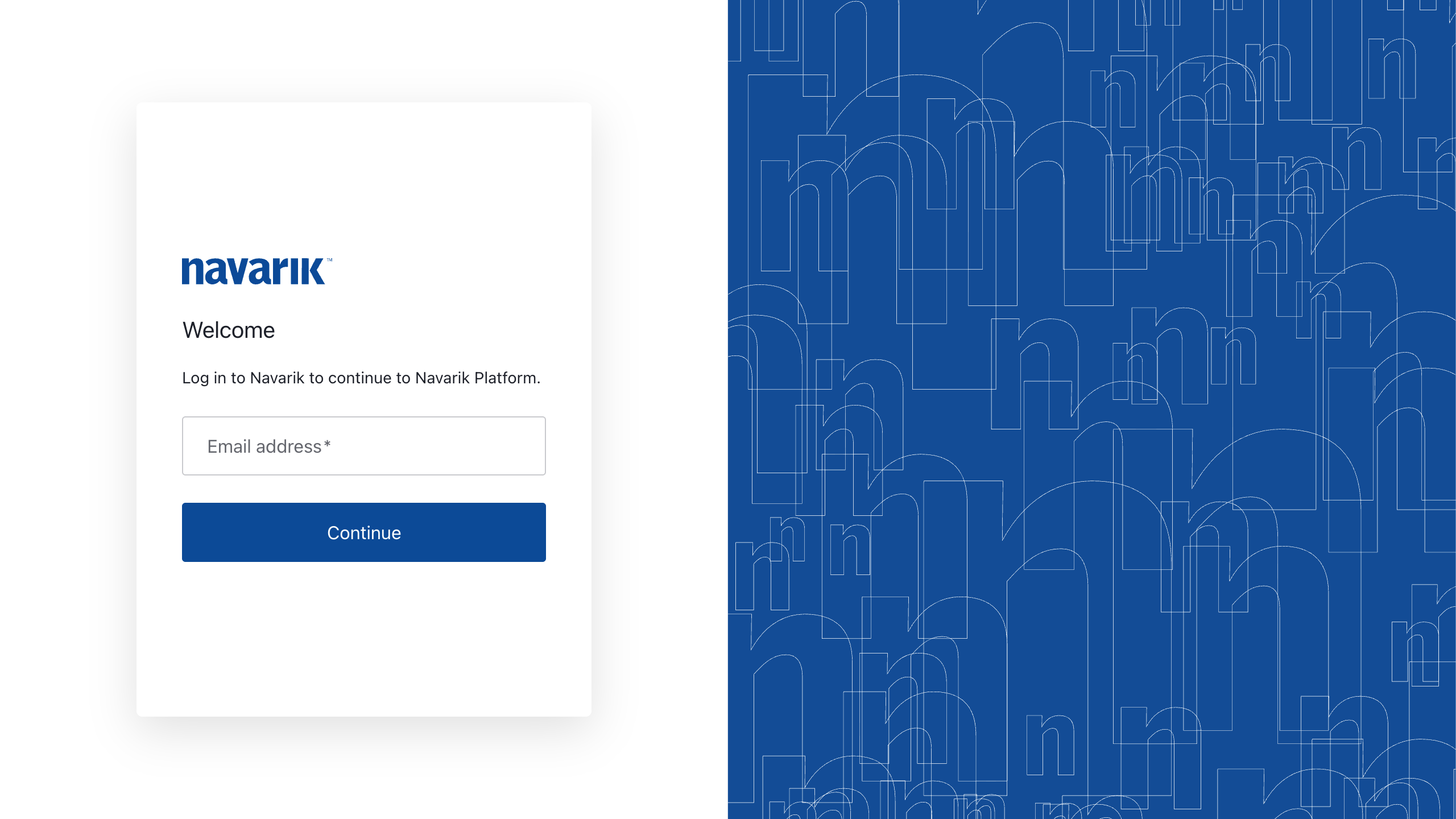
When signing in, you will first enter your email address. Depending on how your organization is configured, you will then either:
- Be redirected to your organization's Single Sign-On (SSO) service; or
- Be prompted to enter your password through NI.
If you are redirected to your organization's SSO service, you do not need to complete the MFA setup described in this guide.
Before you begin
You will need either:
- An authenticator app, such as Microsoft Authenticator, Google Authenticator, or another compatible app; or
- A mobile phone capable of receiving SMS messages.
Authenticator apps are the recommended MFA method.
Setting up MFA on your account
- Sign in to NI using your email address as usual.
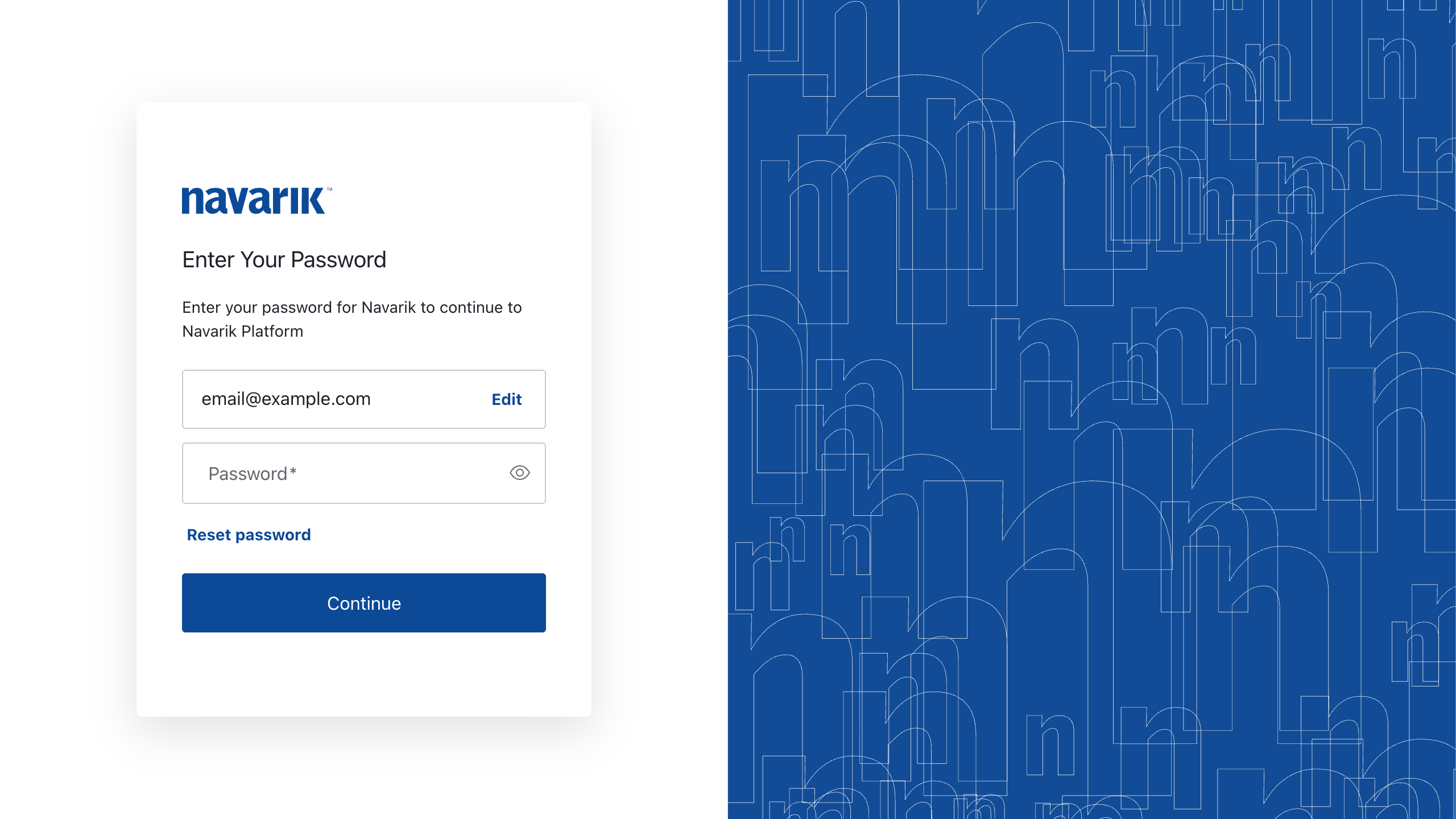
- If your account uses NI-managed authentication, enter your password.
- If MFA has not yet been configured for your account, you will be prompted to select an MFA method.
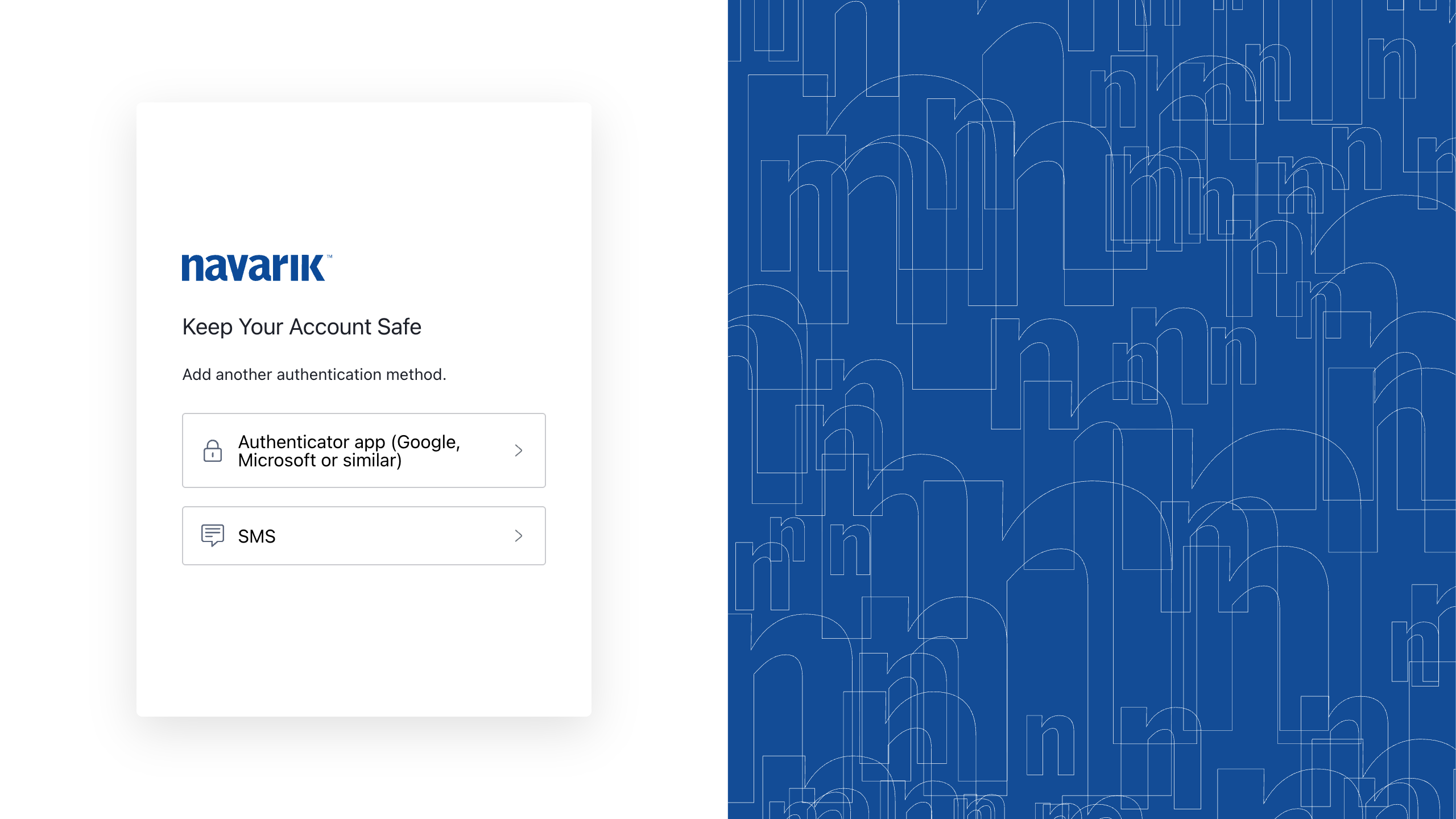
Choose one of two options for your primary MFA:
a) Authenticator app - Recommended.
b) SMS
Follow the instructions below for the method you select.
Option A: Authenticator app (Recommended)
- Select Authenticator app.
- A QR code will appear on screen.
Open your preferred authenticator app on your mobile device and scan the QR code to add your NI account.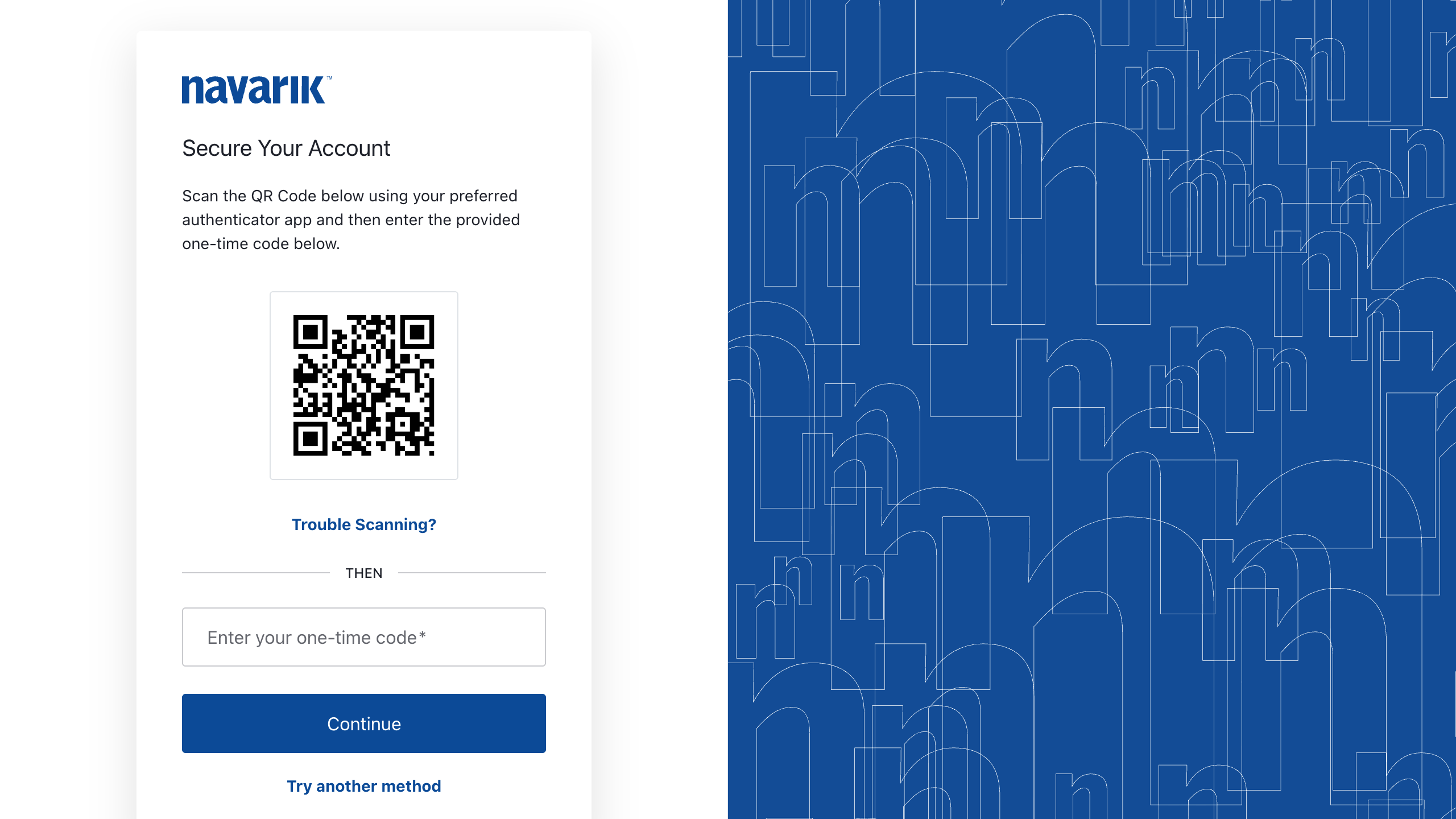
If you are unable to scan the QR code, select Trouble Scanning? to display a code that can be entered manually into your authenticator app. - Your authenticator app will generate a 6-digit verification code. Enter this code in NI and continue.
- After verification, your MFA setup is complete. You will be presented with a recovery code. You can only continue after copying and acknowledging accordingly.
Important: Copy and store your recovery code in a secure location!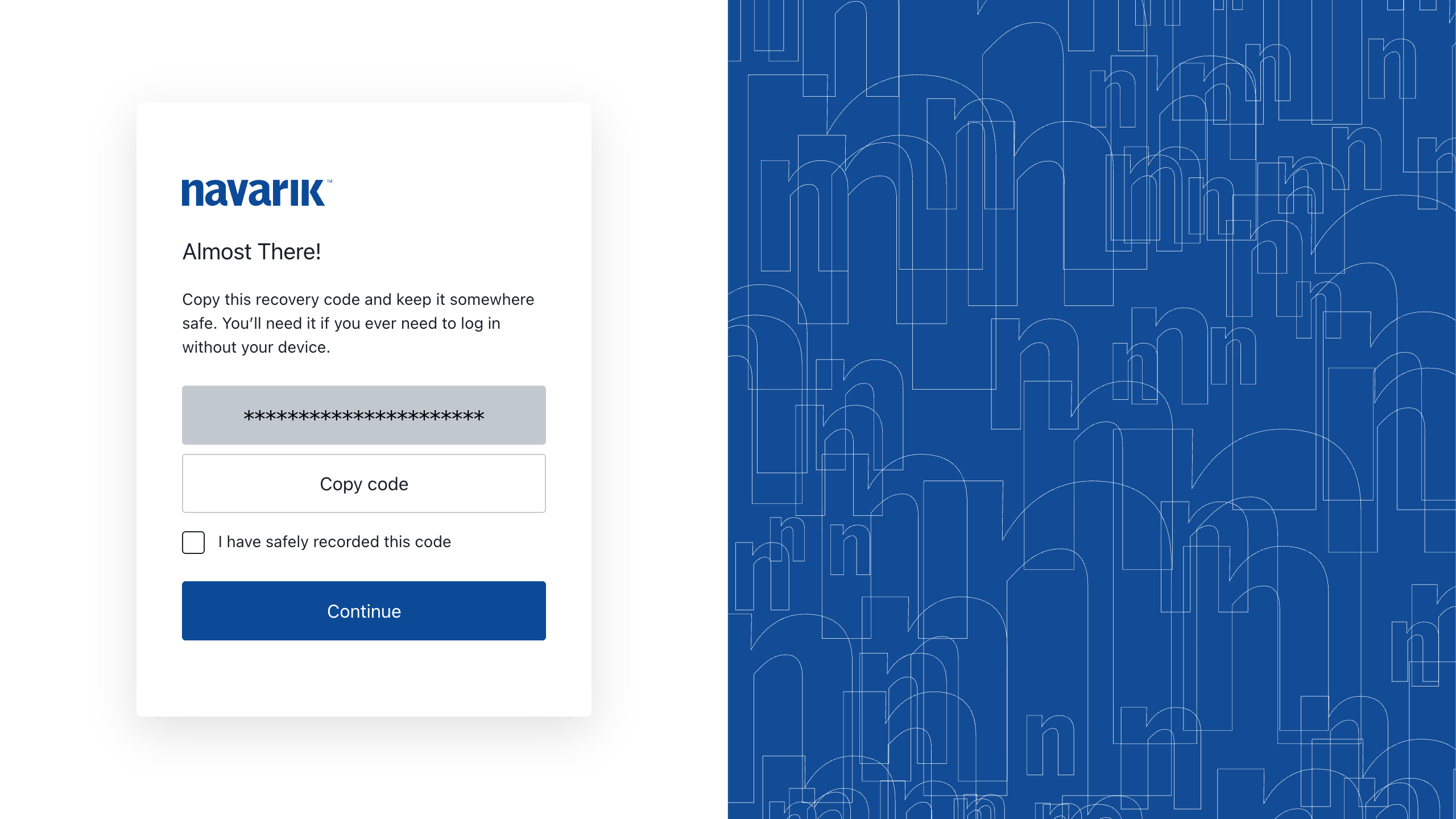
The recovery code can be used to access your account if you are unable to use your authenticator app. You must copy and acknowledge the recovery code before continuing. - On future logins, you will be prompted to enter a code from your authenticator app.
Option B: SMS
- Select SMS and enter the mobile phone number you want to use for authentication
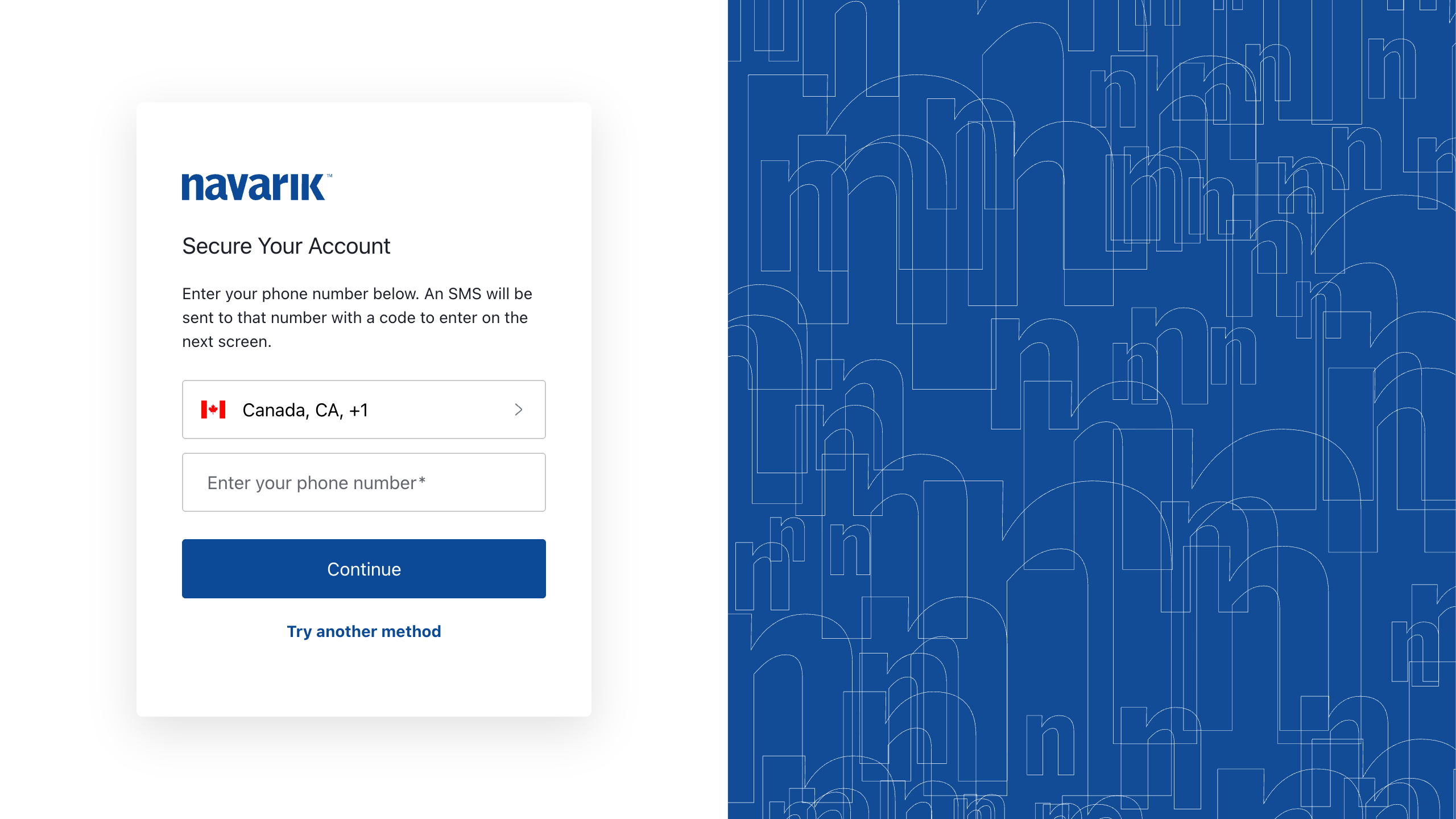
- NI will send a 6-digit one-time code to your phone from +1 (604) 245-3782.
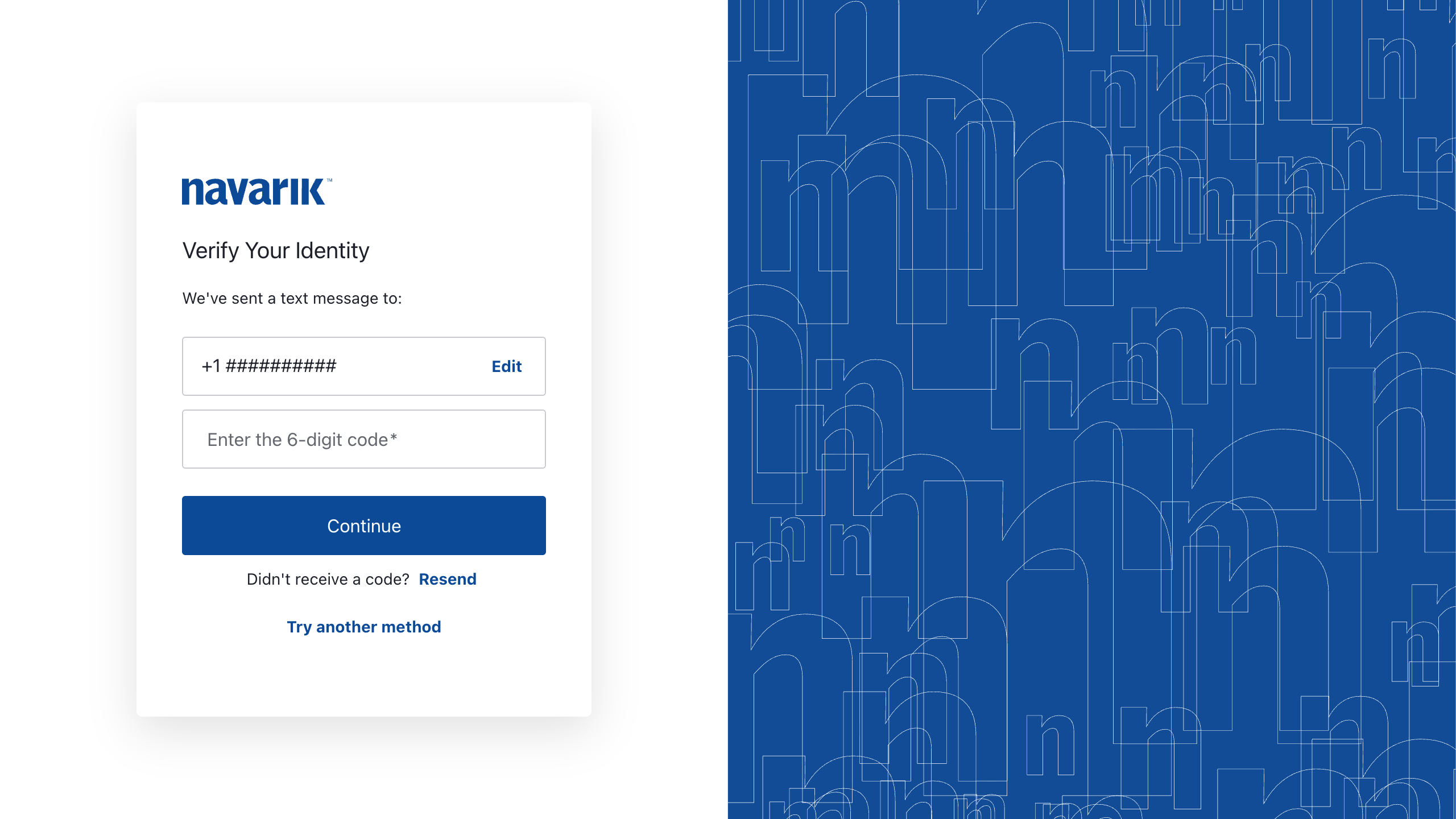
- Enter the code in NI and continue.
Each one-time code is valid for 5 minutes. If the code expires or you do not receive it, select Resend to request a new code. - After verification, your MFA setup is complete.
NI will display a recovery code.
Important: Copy and store your recovery code in a secure location!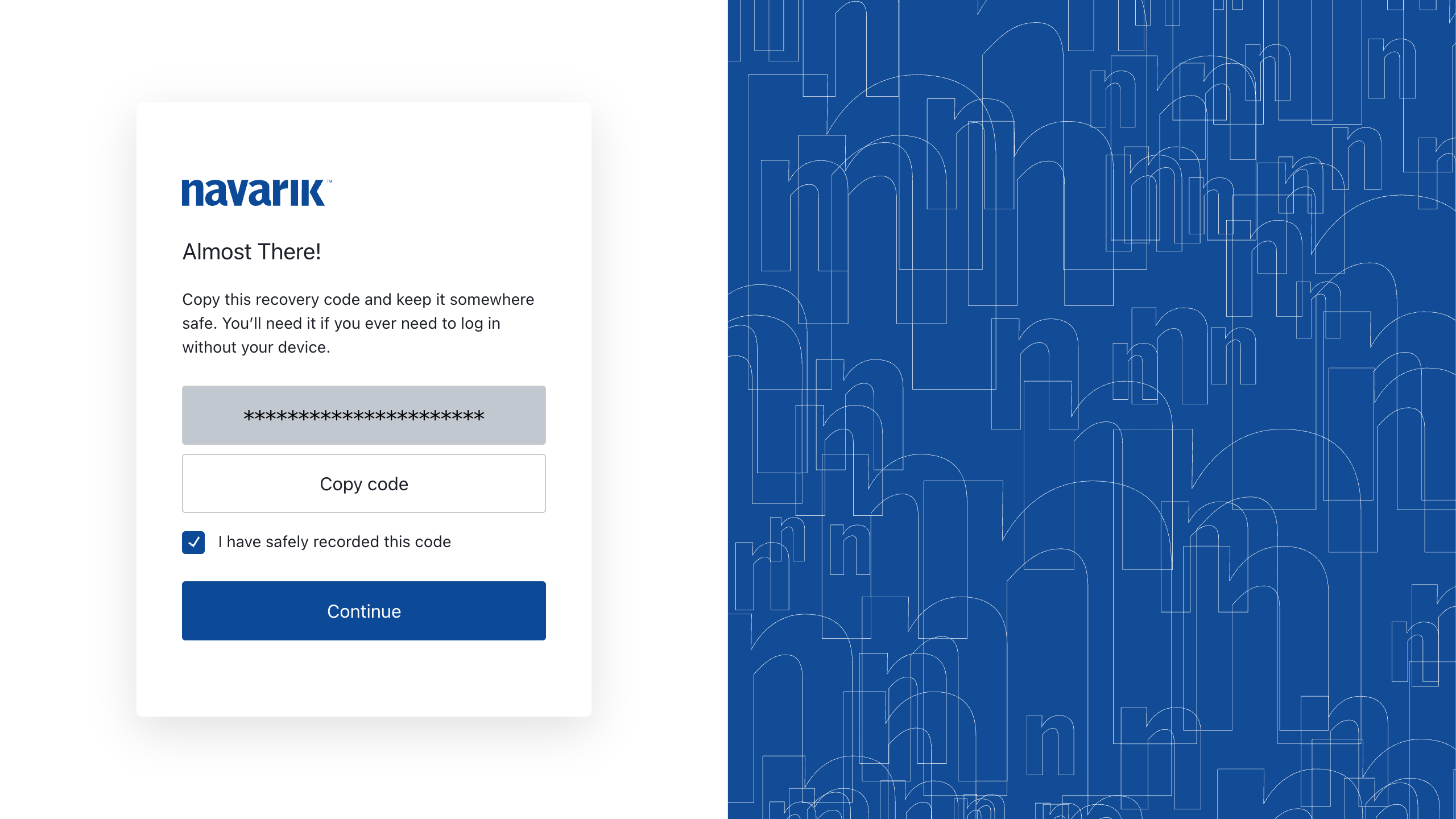
The recovery code can be used to access your account if you are unable to receive SMS messages or access your phone. You must copy and acknowledge the recovery code before continuing. - On future logins, NI will send a one-time verification code to your registered mobile phone.