Who will use MFA?
- All inspection companies
- Additional service vendors
- Expense vendors
- Expeditors
- Certain Cargo companies
From November 14, users who log in with their email and password will be prompted to set up an additional MFA method.
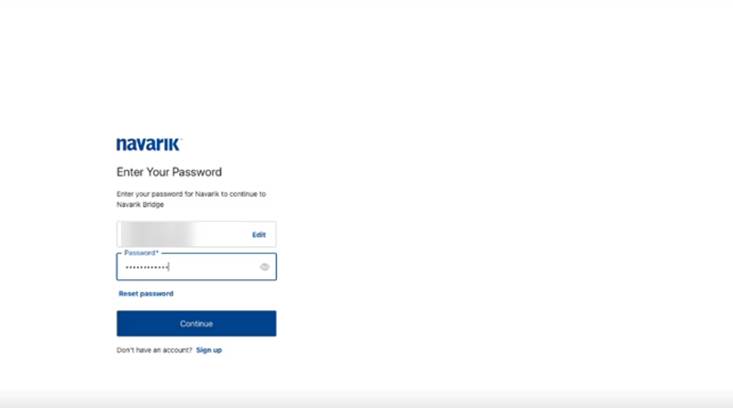
- Log in with email and password as usual.
- The MFA enrollment prompt appears.
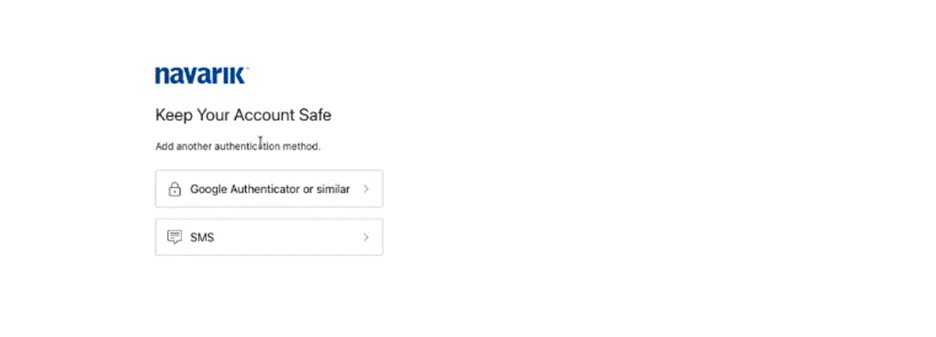
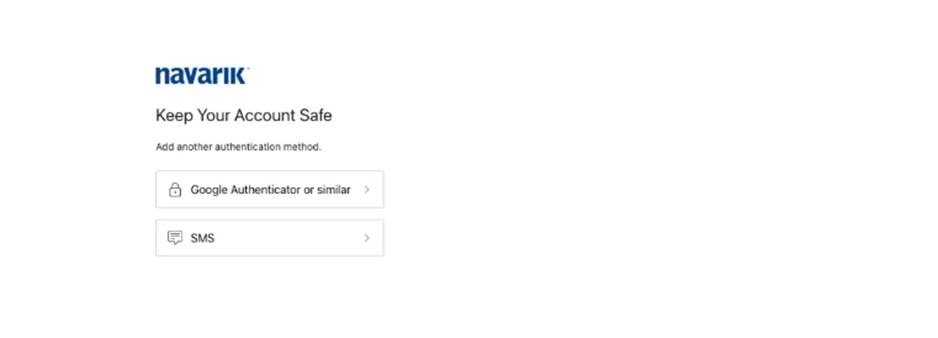
- Choose one of two options: Authenticator app (Google Authenticator or Microsoft Authenticator) or SMS. If you are unsure which option to choose, we would recommend the Authenticator app for additional security.
Option A: Authenticator app
- Select the authenticator app option.
- Open Google Authenticator or Microsoft Authenticator on your phone and scan the QR code shown on screen.
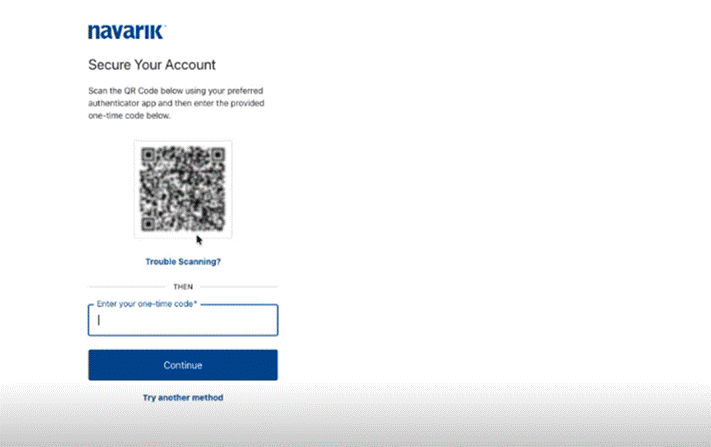
- Enter the code shown in your authenticator app. MFA is now set up.
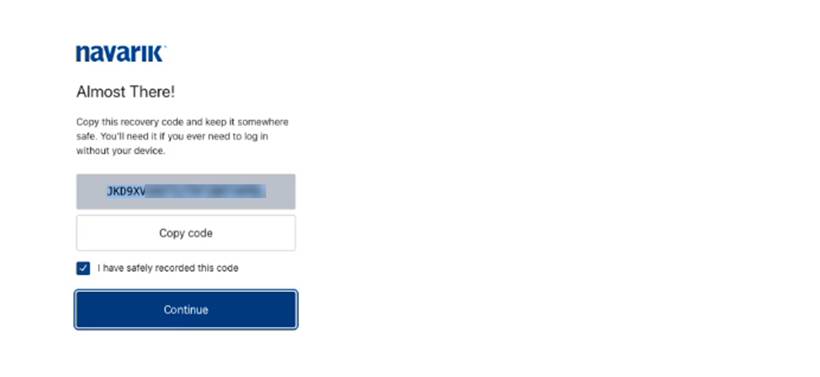
Save your recovery code
Whichever method you choose, you will be shown a recovery code at the end of setup and can only continue to the system when you have selected the checkbox reading “I have safely recorded this code”
Important: keep your recovery code somewhere safe This code lets you get back into your account if you lose access to your phone or authenticator app. Store it securely. |
Option B: SMS
- Select the SMS option and enter your mobile phone number.
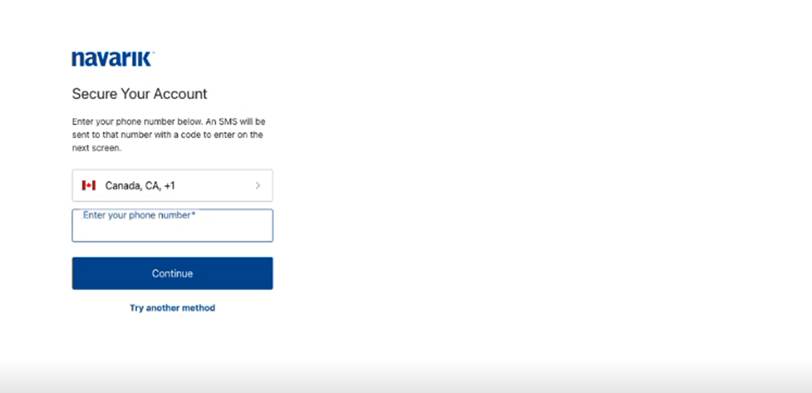
- A 6-digit code is sent to your phone from +1 (604) 245-3782.
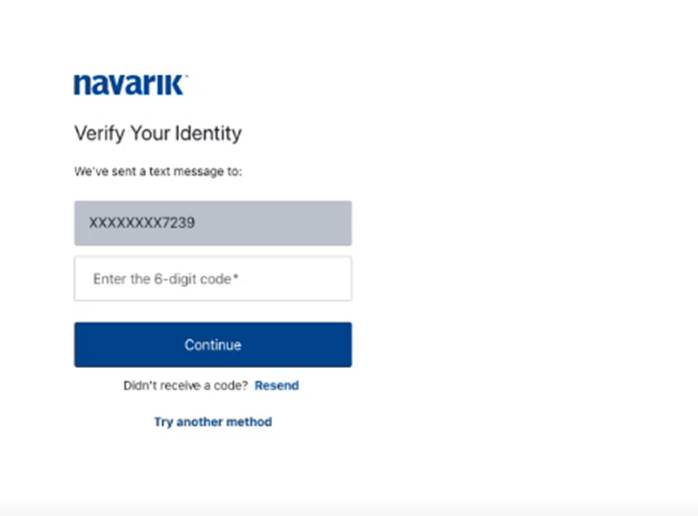
- Enter the 6-digit code. MFA is now set up.
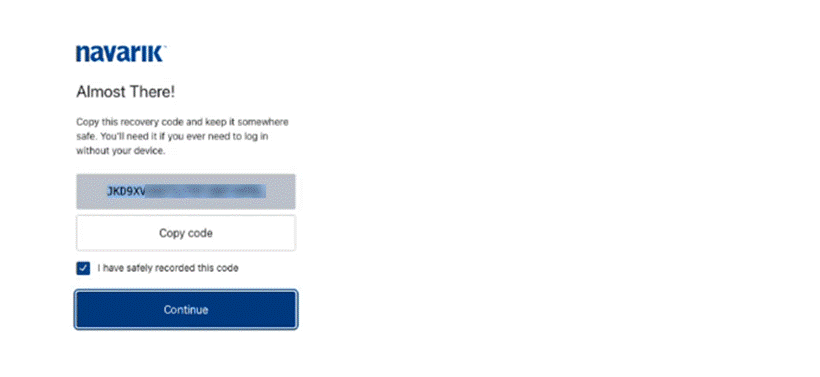
Save your recovery code
Whichever method you choose, you will be shown a recovery code at the end of setup.
Important: keep your recovery code somewhere safe This code lets you get back into your account if you lose access to your phone or authenticator app. Store it securely, then tick “I have safely recorded this code” and select Continue. |