If you have completed your inspection (your worksheet is in all submitted status and any associated Time log has been completed) and the "Create Invoice" button is not available, please see the below instructions.
There are two reasons why the invoice button would be missing and both are related to how the operator has set up the nomination.
1. The space that would usually host the "Create Invoice" icon reads "External"
This means that the Operator has selected "Other" as the invoicing instructions on the nomination. It's possible that the Operator would like the inspection invoice to be submitted outside of Navarik. Please confirm with them. If the Operator would like the invoice submitted in Navarik Inspection, they will need to revise the nomination and update the invoicing instruction section from "Other" to a customer entity.
For the Operator:
Navigate to the Nomination
Select the wrench icon to revise the nomination:
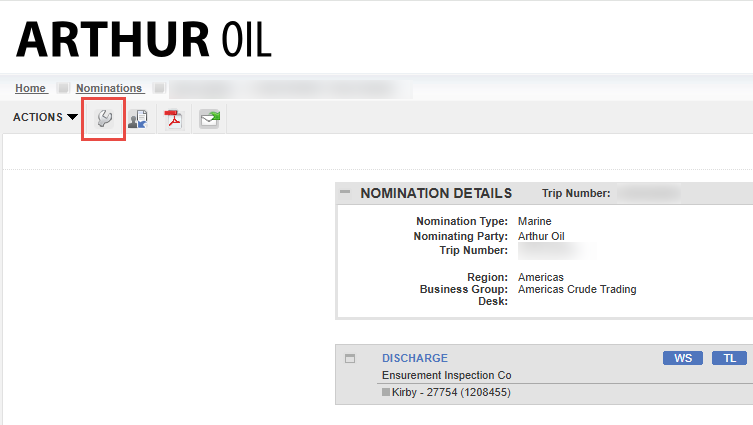
Scroll to the section that reads "Inspection Invoice Instructions" and change the input from "Other" to a customer entity:

Enter a revision comment and save and issue the Nomination:
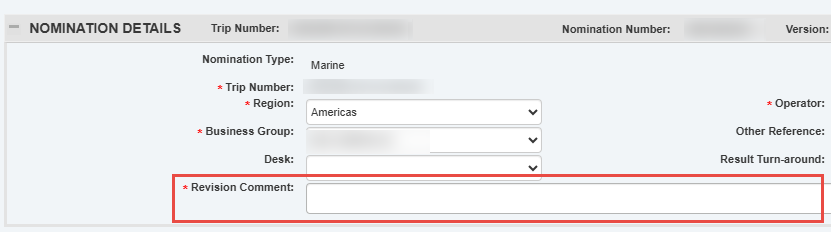
At this point, the "Create Invoice" icon will be available for the inspection company
NOTE: If your company profile bills quality and quantity separately, please ensure that the quality inspection also reflects company entities and does not read "Other"
2. There invoice information is blank
This is typically the case for Sample type nominations as they do not require quality or quantity.
Here are the instructions for the Operator:
Navigate to the Nomination
Select the wrench icon to revise the Nomination:
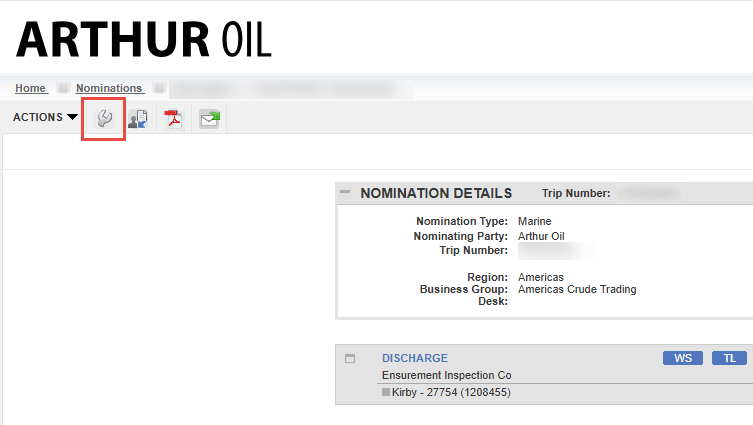
Navigate to the "Inspection Invoice Instructions" and select "Add Split"
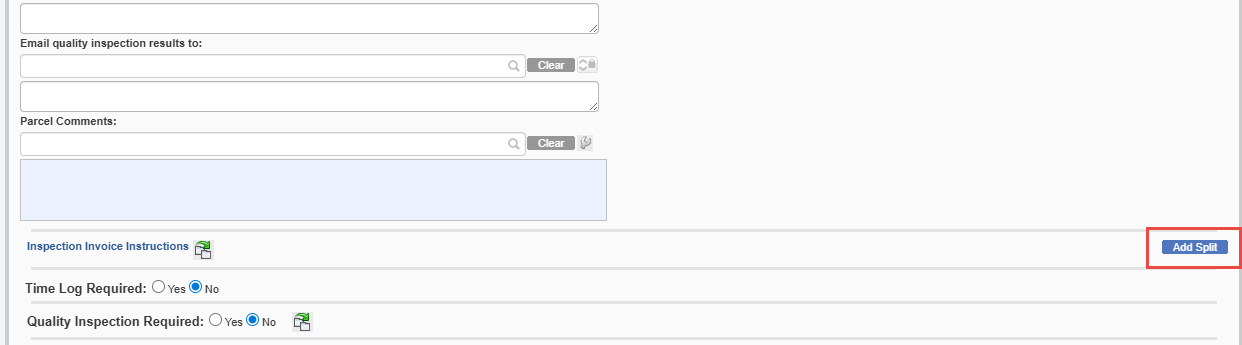
Fill in a company entity
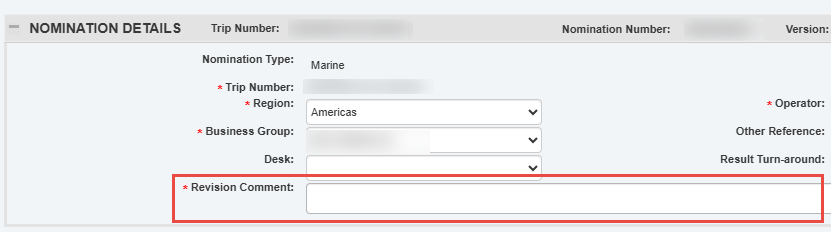
Submit a revision comment and save and issue the Nomination:
At this point, the "Create Invoice" icon will be available for the inspection company
Final Note:
If you need help finding the contact information for the operator, it is available on the nomination in the "Nomination Details" section.