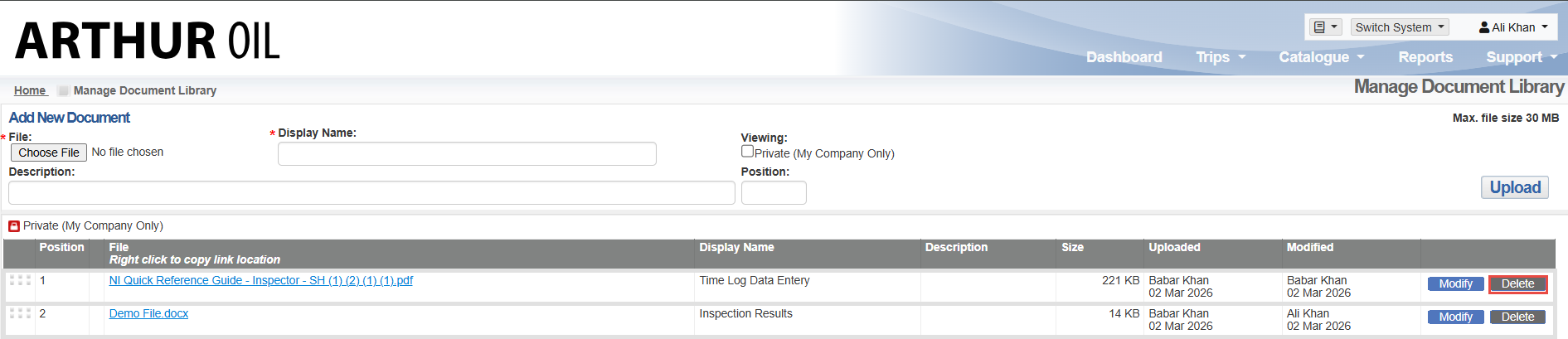
As a system administrator, you can manage all files stored in the document library. This library shows every file that has been uploaded to records in Navarik Inspection and gives you the ability to upload new files as needed. You can also edit or delete existing files. If you update or remove a file that’s linked to a record, the record will reflect those changes automatically.
To upload a new file to the Document Library, follow the instructions outlined below:
• On the top right corner, click the Document Library drop-dowm, and select Manage Document Library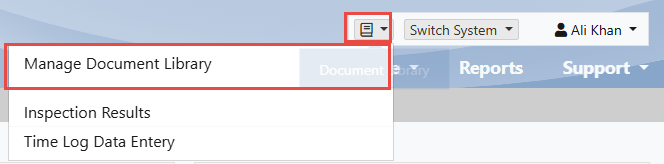
• Under Add New Document, click Choose File to select a document, enter a Display Name and Description, and click Upload. (To make the file private to your company, under Viewing, select Private)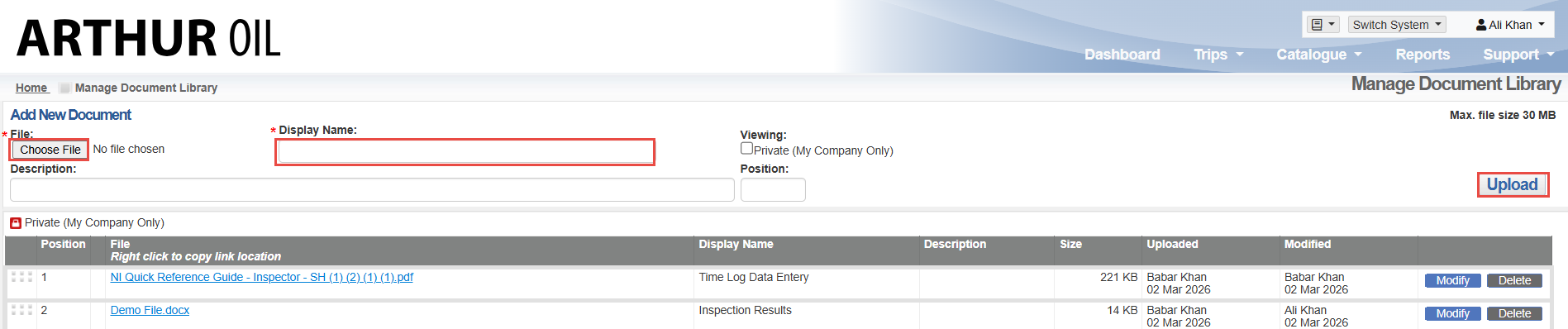
To Modify the file Display Name:
• Click on the Modify tab, edit the Display Name and click Save Changes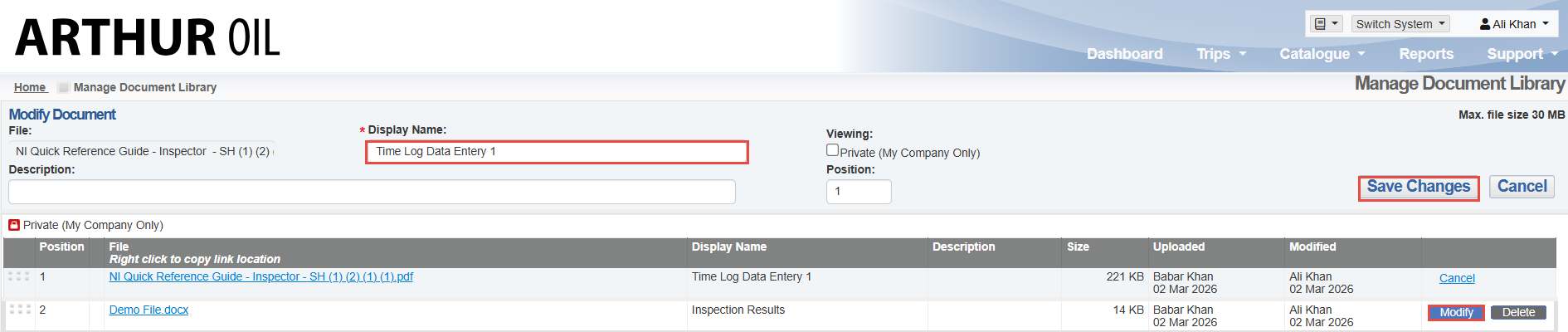
To delete an existing file:
• On the right-hand side, across from the file click the Delete tab