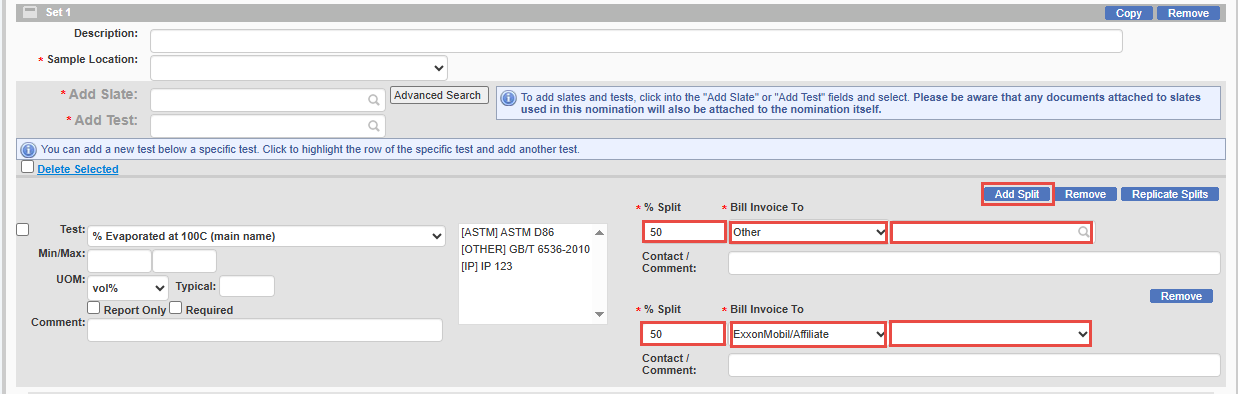
Splits define how that cost is divided.
Example:
• Cargo Company: 75%
• Third Party: 25%
Allocations can exist at multiple levels:
1. Parcel level
2. Quality test level
For each nomination, each parcel has its own invoicing instructions. The Inspection Invoice Instruction section on the nomination form is where operators specify who is responsible for paying the parcel’s inspection costs. Operators can define cost splits at both the quantity and the quality, depending on how inspection charges need to be allocated.
To assign cost allocation and splits, follow the steps outlined below:
For Quantity:
a. If you wish for your company to bear the entire cost:
Navigate to the inspection "Invoice Instructions Section," depending on the requirement
• From the "Item" drop-down, select "Quantity Only" or "Other."
• Select your cargo company name from the "Bill Invoice To" drop-down. and enter the cost allocation. (Depending on your company profile setup, internal cost splits may also be available.)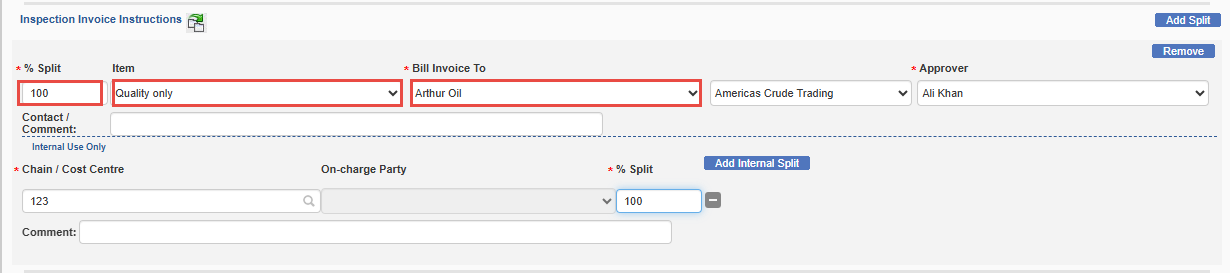
b. If you wish to assign the entire cost to a counterpart, please select "Other" from the "Bill Invoice To" drop-down.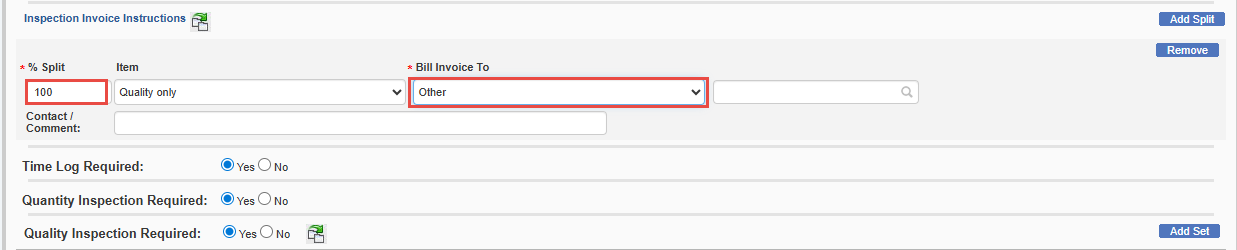
c. If you wish to assign multiple splits between companies, click on the "Add Split" tab. from the "Bill Invoice To" drop-down, select the desired parties and enter the required cost splits accordingly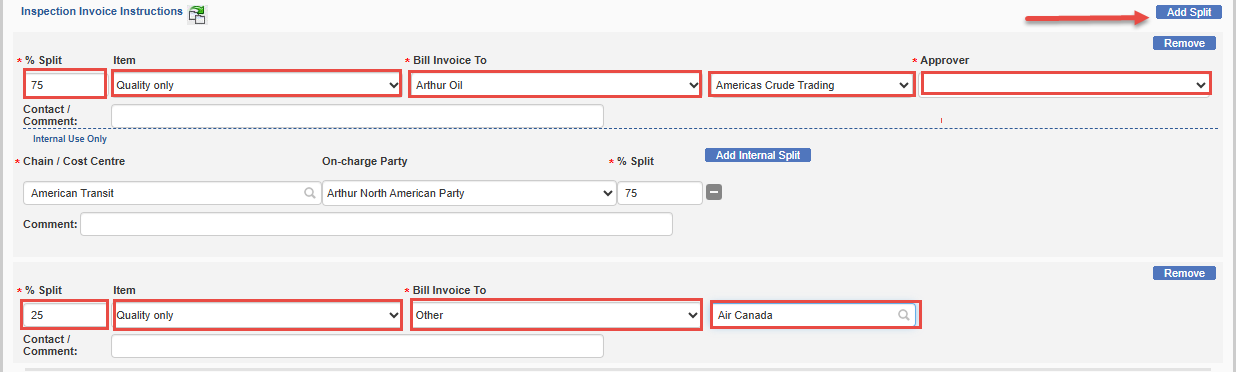
For Quality:
If quality-level allocation is enabled for your company profile, operators can enter cost splits for each quality test that has been selected
a. If you wish for your company to bear the entire cost, select your cargo company name from the "Bill Invoice To" drop-down. and enter the cost allocation. (Depending on your company profile setup, internal cost splits may also be available.)
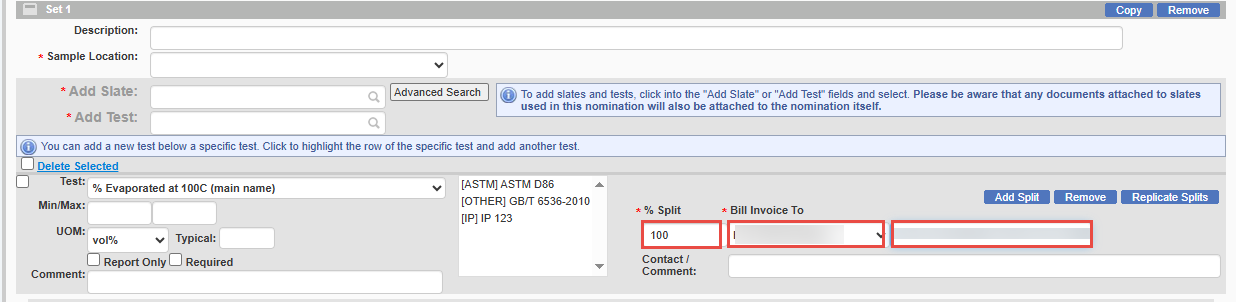
b. If you wish to assign the entire cost to a counterpart, please select "Other" from the "Bill Invoice To" drop-down and enter the split
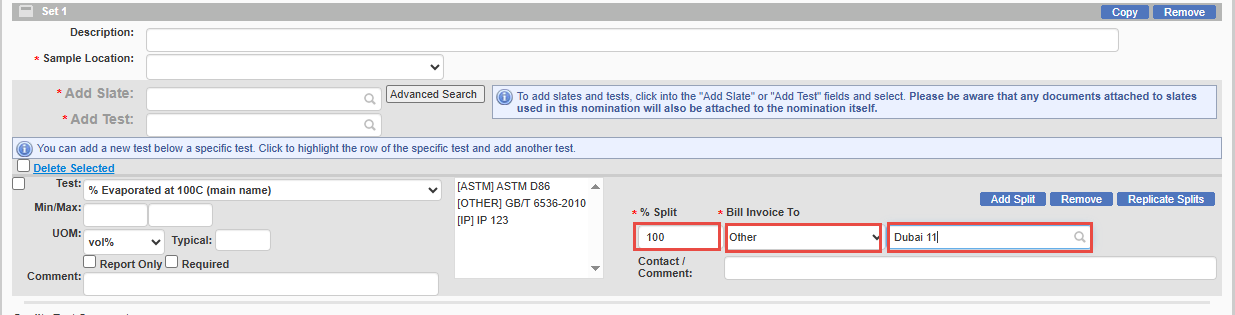
c. If you wish to assign multiple splits between companies, click on the "Add Split" tab. from the "Bill Invoice To" drop-down, select the desired parties and business group and enter the required cost splits accordingly