In this scenario, we will review the capabilities within Navarik after an invoice has been submitted by the inspection company. As each cargo company's invoicing process varies, especially on how or if they choose to integrate an invoice processing system, this workflow may be tailored to match the company's needs.
Important to note: some companies utilize invoice batching, and some do not. Below are instructions for both.
Statuses an invoice can have:
Draft (only visible to inspection company)
Pending
Approved
Disputed
Void
Batched
Submitted for Payment
Paid
Workflow:
1. An invoice is submitted by the inspection company
2. The invoice is reviewed by the cargo company
3. The invoice is approved by the cargo company (either through the web service or through the user interface)
4. The invoice(s) is/are marked as batched by the cargo company (either through the web service or through the user interface)
NOTE: If the intention is to pay multiple invoices simultaneously, these invoices can be "batched" together if they match the following criteria:
▪ Approved status
▪ Have identical cost allocations
▪ Have cost allocations that total 100%
▪ Contain the same currency, bank account and vendor
▪ Be the same type, i.e. inspection invoice or expense invoice
5. Mark the batch as "Submitted for Payment" status by the cargo company (either through the web service or through the user interface)
6. Mark the invoice as "Paid" by the cargo company (either through the web service or through the user interface)
High level chart: High-level Invoice Workflow Cargo Company Profile with Batching
NOTE: not all cargo companies choose to batch. If this option is not available, please apply the following workflow:
1. An invoice is submitted by the inspection company
2. The invoice is reviewed by the cargo company
3. The invoice is approved by the cargo company (either through the web service or through the user interface)
4. The invoice is marked as submitted for payment by the cargo company (either through the web service or through the user interface)
5. The invoice is marked as paid by the cargo company (either through the web service or through the user interface)
High level chart: High-level Workflow Chart for Cargo Company without Batching
To mark the invoice as Paid through the user interface (Batching):
1. Navigate to the Trips menu, and select Invoices 
2. Search for the invoice(s) (pending) status
3. Open the invoice and mark it as approved
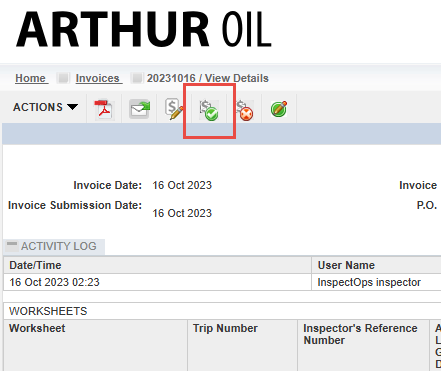
4. Navigate back to the "Invoices" viewall from the "Trips" drop-down
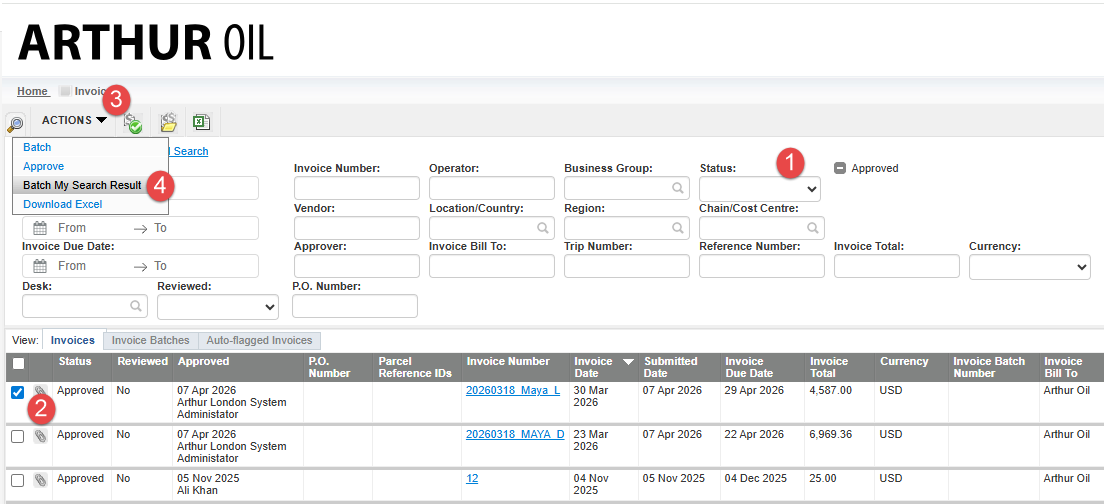
5. Search for the invoice directly by entering the invoice number or search for invoices in "Approved" status
6. Select the invoice checkbox on the left-hand side >> Actions >> Batch my search result(s)
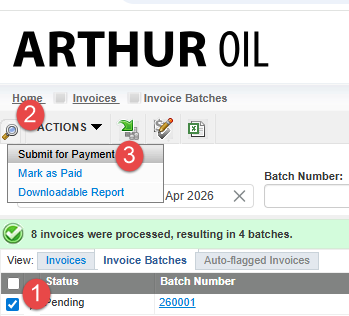
7. Select the batch (or batches) using the check box(s) on the Invoice Batches screen and clicking the “Submit for Payment” icon NOTE: The status of the batch is "Pending". The status of the individual invoice(s) are "Batched".
8. Select the batch (or batches) using the check box(s) on the Invoice Batches screen and clicking the “Mark as Paid” icon. NOTE: The status of the batch is "Submitted for Payment". The status of the individual invoice(s) are "Submitted for Payment"
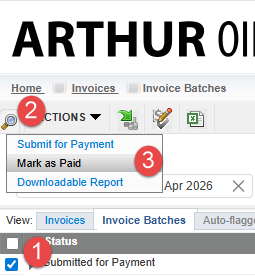
Note: Once everything has been completed, the status if the individual invoice(s) as well as the status of the invoice Batch is "Paid"
To mark the invoice as Paid through the user interface (no Batching)
1. Navigate to the Trips menu, and select Invoices
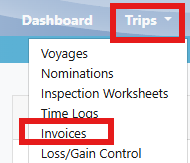
2. Search for the invoice(s) (pending) status
3. Open the invoice and mark it as approved (If you do not have the option to approve, see: Invoice Approver Role)
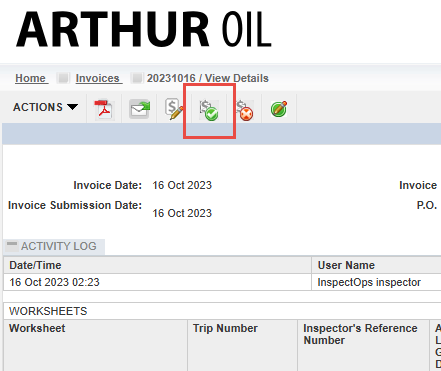
4. Navigate back to the "Invoices" viewall from the "Trips" drop-down
5. Search for the invoice directly by entering the invoice number or search for invoices in "Approved" status
6. Select the invoice checkbox on the left-hand side >> Actions >> Submit for Payment
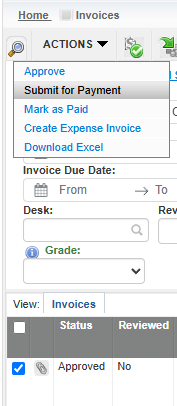
7. Confirm that the invoice should be submitted for payment:

8. Select the invoice checkbox on the left-hand side >> Actions >> Paid
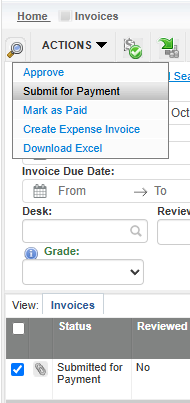
9. Confirm that the invoice should be marked as paid:


Additional:
Revert Paid Invoice back to Approved Status